Controls & Controller Support
On-screen buttons you can move and resize, separate layouts for portrait and landscape, and controller support when you want a real gamepad.
RESIZE.
PLAY.
Everything within
a thumb's reach.
Numbers match the list beside the device.
- D-padMove and navigate.
- A and BThe action buttons.
- L and RShoulder buttons, for GBA games only.
- Start and SelectSit under the D-pad.
- MenuOpens the pause menu.
- Gameplay barSave, Fast, Cheats and Controls, one tap away.
Drag it. Size it.
Keep it.
A miniature of the layout editor. Drag a control, pick it, then resize it. Portrait and landscape are separate.
Drag any control. Use the slider to resize the one you picked.
Upright on the go.
Wide when you settle in.
Each orientation has its own control layout, so a comfortable landscape setup does not have to compromise your portrait one.
- 01
Set it per game
In Game Settings, orientation can be Automatic, Portrait or Landscape.
- 02
Separate layouts
Move and resize controls independently for each orientation.
- 03
Reset any time
Reset returns the current orientation to its defaults, and nothing changes until you tap Save.
Prefer a gamepad?
Connect one and play the traditional way.
The app supports controller input. Settings → Controller shows whether a controller is connected, and the button mapping the app uses. It is the standard Android gamepad mapping, and it applies to every game.
- 01
Touch buttons step aside
With Touch controls on Automatic, they hide only while a controller is connected.
- 02
Always or Never
Choose to always show or never show them, globally or per game.
- 03
A friendly warning
Hiding touch buttons with no controller connected asks you to confirm first. You can still reach Menu.
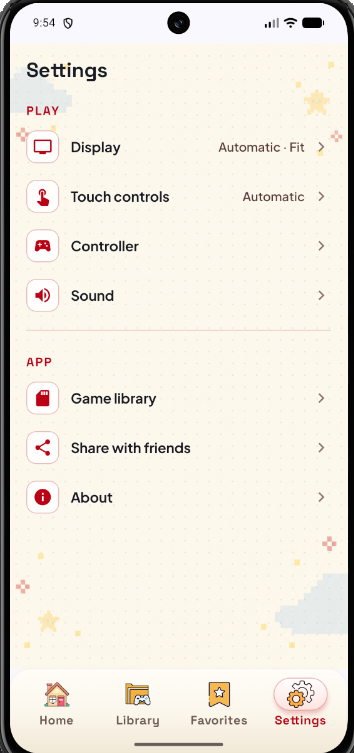
YOUR RULES.✦
Where it all lives.
- 01
Settings → Touch controls
Visibility, Customize controls (move and resize), the Show cheats button and Show fast-forward button toggles, and a reset for per-game touch preferences.
- 02
Settings → Controller
Connection status and the button mapping.
- 03
Game Settings (pause menu)
Per game: orientation, picture size, image style, speed and touch controls.
Real app Settings screenshot.
Can I move and resize the touch controls?
Do portrait and landscape share one layout?
Can I change my controller's button mapping?
Do L and R show up for Game Boy and Game Boy Color games?
 MOVE. RESIZE. PLAY.
Make it yours.
Comfortable controls, in portrait or landscape, with or without a gamepad.
Bring your own compatible game files. Games are not included.